Onboarding used to mean a form, a wizard and a checklist. That is changing. Looking at where new users land in 2026, the first screen is more and more a conversation: a prompt box, an assistant that introduces itself, a template with an AI button next to it.
We recently went through the onboarding journeys of ten of the most influential products in UX design, and a few of the things we found surprised us. Here are the eight that stood out:
- Setup is handed to your coding agent. Amplitude gives you a prompt to run in Cursor or Claude, then waits for the first event to arrive.
- The prompt box is the new wizard. Instead of a profile form, an assistant asks a few questions and writes your starting setup from the answers.
- AI is the new paywall, and credits are the meter. The features behind the gate, and the numbers on the meter, are increasingly about AI.
- Templates and prompts are converging. A template with an “Edit with AI” button beside it is now a common starting point.
- Your tools become the context. Products ask you to connect your calendar, mail or brand early, so the first result is about you.
- Reverse trials keep the clock on screen. You start on the paid plan, a countdown stays visible, and you fall back to Free when it runs out.
- Fewer passwords, more reasons. Codes, passkeys and “Continue with ChatGPT” replace the password, and questions explain why they are asked.
- Onboarding never ends. Checklists, tours and “New” badges follow you into each feature long after sign-up.
The rest of this post unfolds each finding, then looks at what it means for how you design onboarding and which patterns are changing shape.
What we looked at
We investigated 10 onboarding journeys: Airtable, Amplitude, Canva, Figma, Mailchimp, Netflix, Notion, Shopify, Slack and Trello. The screenshots are added to the pattern library. Captured in October 2026.
What we found
1. Setup is handed to your coding agent
Amplitude’s “Let’s get data in!” screen recommends an “AI prompt” next to the usual code snippet: “Set up Amplitude in the selected app: one real, app-produced first event, ingested into the selected project.” You press “Open in Cursor” or “Copy Prompt”. The footer says “Waiting for your events…”, and “Finish Setup” stays disabled until data flows. “Skip for now” and “Invite Team” (hand setup to a developer) are the ways out.
Notice what changed. Success is no longer a completed form. It is a real event arriving from the user’s own app. The product does not guide you through the steps. It writes the instructions for another tool and watches for the result. We treat this as a variation of Suggested Action.
Why this works
- The hard part of setup (code changes) is done by a tool the user already trusts
- Success is defined as a real event arriving, not as a completed form
- The waiting state gives clear feedback, and “Skip for now” keeps the user in control
Amplitude: a setup prompt for your coding agent
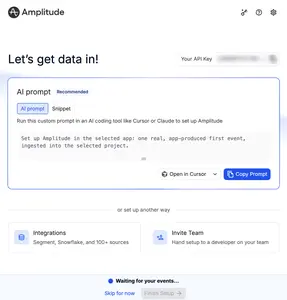
Amplitude asks you to run a prompt in Cursor or Claude to set up tracking. Setup is no longer done in the product. See it on Data Import.
Amplitude: the other route
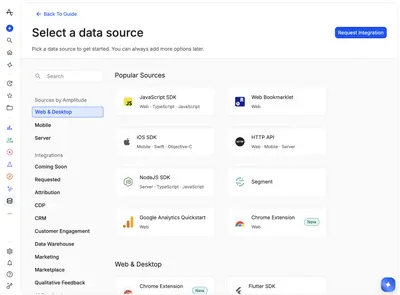
The other route: Amplitude’s list of data sources, grouped by platform, with a search field. See it on Data Import.
2. The prompt box is the new wizard
Airtable has no profile form. An assistant called Omni introduces itself, asks where you work, what industry you are in and which team you are on, and then writes a starting prompt from your answers. You accept it with “Build it” or ask for other ideas with “Change suggestions”.
That is a Personalization Form, a Wizard, Suggested Prompts and a preview, merged into a single conversation. Notion’s welcome screen does the same in a different voice: “I’m Notion AI. Yeah, another AI … try to contain your excitement.” It then offers three starting tasks and a “Describe your own” box. Canva has an AI prompt on its home page, and the last question in Figma’s setup lets you choose between the Figma agent, a template or a blank canvas.
Airtable: Omni asks about your business
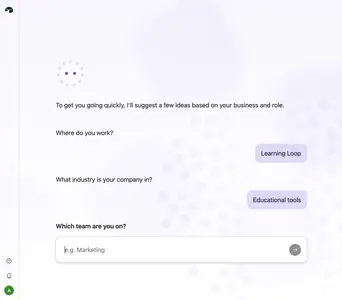
Airtable’s assistant asks about your business, one question at a time, before building anything. See it on Personalization Form.
Airtable: a starting prompt from your answers
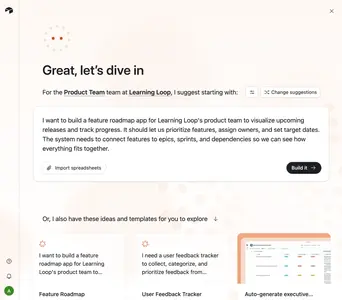
The answers are turned into a starting prompt you can build from or change. See it on Suggested Prompts.
Notion: the assistant introduces itself
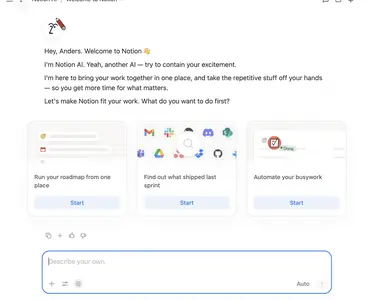
Notion’s welcome screen introduces its assistant, offers three starting tasks as cards, and ends with a “Describe your own” box. See it on Suggested Prompts.
Canva: suggested prompts and your context
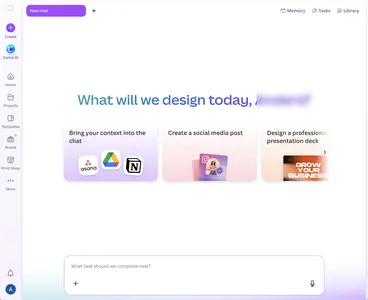
Canva’s AI home offers suggested prompts and asks you to bring your context into the chat. See it on Suggested Prompts.
3. AI is the new paywall, and credits are the meter
The strongest monetization signal across the products is that AI features are what get gated. Airtable announces that “Airtable AI is now included in your trial”, but asks you to confirm your email to get access. Its plan table counts AI credits (500 per editor each month on Free, 15,000 per paid user on Team). Trello puts “Create board with AI” behind Premium. Canva’s Grow announcement leads with “AI that knows your brand”. Claude shows a session limit and a weekly limit.
This is Feature Gate aimed at AI, and Usage Meter measuring credits or rolling windows instead of storage. Deferred Verification is also used as cost control: you can look around, but the expensive action waits until your email is confirmed.
Airtable: AI is included in the trial
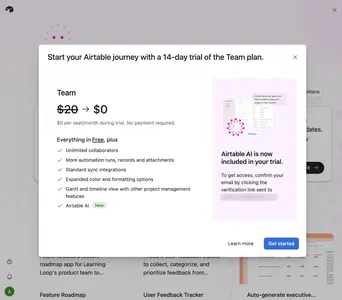
Airtable announces that Airtable AI is included in the trial, and asks the user to confirm their email to get access. See it on Deferred Verification.
Airtable: AI credits in the plan table
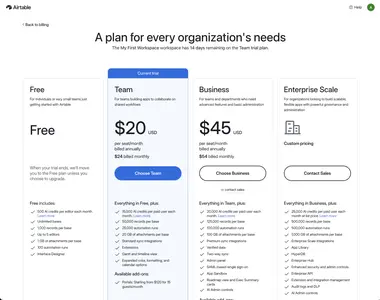
Airtable’s plan table counts AI credits each month: 500 per editor on Free and 15,000 per paid user on Team. See it on Pricing table.
Trello: AI behind Premium
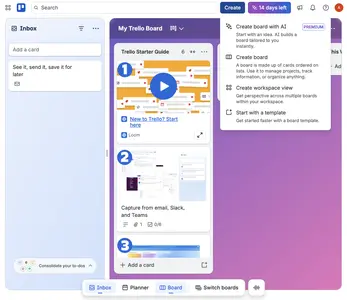
Trello shows the AI option in the Create menu, behind a Premium gate. See it on Feature Gate.
Claude: usage limits
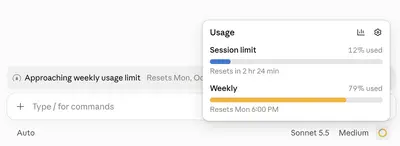
Claude’s usage limits are a meter with a rolling window rather than a fixed total. See it on Usage Meter.
Dropbox: storage meter
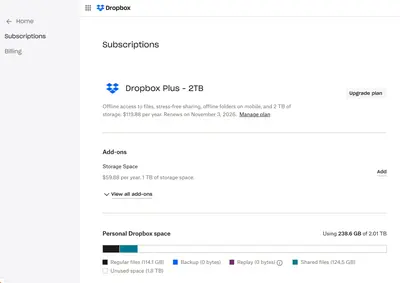
Dropbox’s storage meter, the classic version of the same pattern. See it on Usage Meter.
4. Templates and prompts are converging
Template Gallery has long been the way to avoid a blank page. In these journeys it sits next to a prompt box, and the two are blending. Airtable’s suggested prompt comes with ideas and templates right below it. Canva’s template page shows “Customise this template” with an “Edit with AI” button directly beneath it. Slack, Mailchimp and Amplitude all present templates inside their setup flows.
The gallery also seems to be moving from browse everything toward chosen for you: Airtable writes its suggested prompt from your answers, and suggested prompts work like clickable templates.
Airtable: the template picker
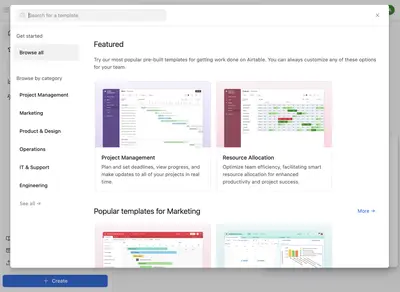
Airtable’s template picker, with categories, a featured row and a one-line description for each template. See it on Template Gallery.
Canva: a template with Edit with AI
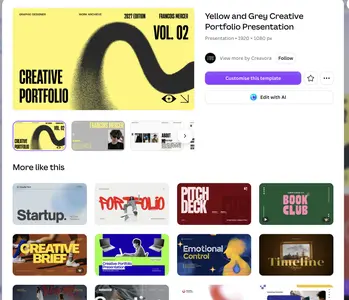
Canva pairs “Customise this template” with “Edit with AI” on the same screen. See it on Template Gallery.
5. Your tools become the context
AI assistants are only useful when they know something about you, so onboarding now asks you to share context early. Canva says “Bring your context into the chat”. Notion offers to “tailor your workspace with your actual context and schedule”. Mailchimp’s checklist opens with “Brand imported!” already ticked. Trello asks you to connect a calendar to power its planner.
This turns Connected Accounts from an integrations afterthought into a first-run step, and it makes Smart Prefill a core way to personalize without asking questions.
Trello: connect your calendar
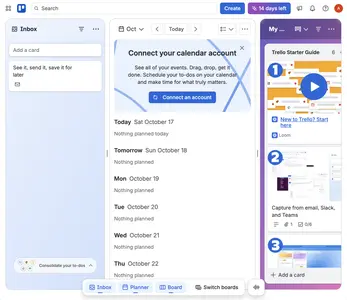
Trello asks to connect a calendar so the planner has something to show. See it on Connected Accounts.
6. Reverse trials keep the clock on screen
Airtable and Trello start you on a paid plan and move you to Free when the trial ends. Both keep a label visible all the way through: “Trial: 14 days left” in every Airtable base and “14 days left” in Trello’s header. Trello’s panel also offers to extend the trial to 30 days if you add a payment method. Shopify shows “Trial ends in 3 days” at the top of its home page.
The persistent label is a Trial Countdown. Starting on paid means you try everything first and feel what you lose later, which puts loss aversion to work. Exits are also getting more careful: Netflix offers to pause for up to three months, and Trello (through Atlassian) says “You can cancel the deletion before 31 October 2026” after you delete your account. See Cancellation Flow.
Trello: the 14 days left panel
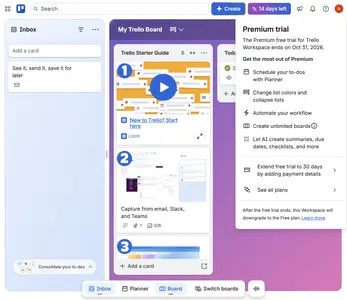
Clicking Trello’s “14 days left” label opens a panel with the end date, what the trial includes, and a note that the Workspace moves to the Free plan afterwards. See it on Trial Countdown.
Trello: free for 14 days, no card
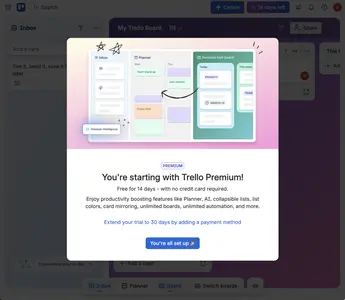
Trello’s trial is free for 14 days with no credit card, and can be extended to 30 days by adding a payment method. See it on Trial Countdown.
Canva: the trial timeline
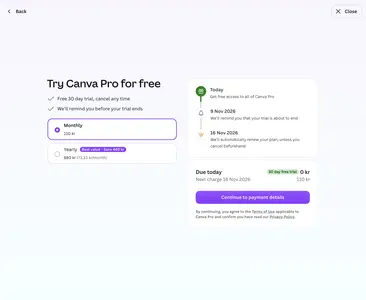
Canva shows a timeline of when the trial reminder and charge happen. See it on Trial Countdown.
7. Fewer passwords, more reasons
Several products avoid passwords at the start. Trello and Notion send a six-digit code, Netflix sends a link and keeps “Create password instead” as the escape, and Canva and Amplitude suggest a passkey. Social Login now includes “Continue with ChatGPT” next to Google at Airtable, Notion and Vercel.
Questions come with a reason and a way out. Notion asks for Gmail and Google Calendar and says why (“Tailor your workspace with your actual context and schedule”), with a Skip button. Shopify’s chips come with Skip and Back, and Notion’s goal question offers “Not sure, I’m exploring”.
Canva: one question, every answer described
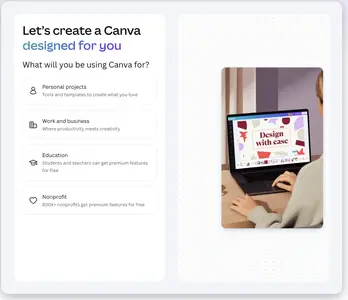
Canva asks a single question and gives each answer a one-line description. See it on Personalization Form.
8. Onboarding never ends
Onboarding used to be a sequence you finished. Now it lives inside the features. Mailchimp shows “0/5 tasks done” inside Automations, Airtable follows its welcome with a “Getting started” checklist (0/4) that includes automating work with field agents, and Figma runs a later tour that points out new AI features in the editor. Badges marked “New” and hotspots announce each addition.
The Onboarding Checklist and Feature Spotlight are now used per feature, not per product.
Airtable: the Getting started checklist
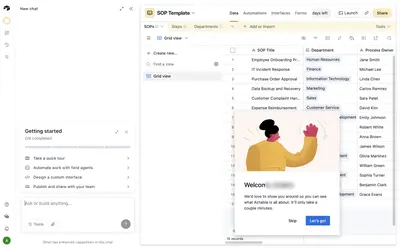
Airtable’s “Getting started” checklist: take a tour, automate work with field agents, design an interface and share with your team. See it on Onboarding Checklist.
Airtable: a New card for Omni reports
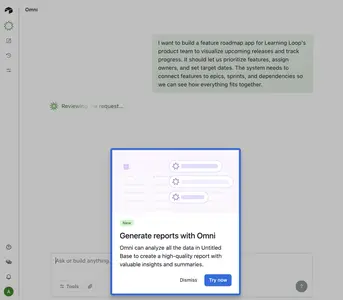
A “New” card inside Airtable introduces report generation with Omni while the user is already working in the assistant. See it on Feature Spotlight.
What this means for onboarding
The first screen is now a decision about where to put effort. Do you want the user to describe, pick, or configure? In the best examples all three are on offer, and the product learns from the choice.
Time to first value shifts to time to first prompt result. If the AI produces something half right, users need a clear way to review, change and undo it. This is the biggest risk in the new flows: a convincing but wrong setup is harder to spot than an empty one.
Context is the new currency. The more you let users connect and import, the better the first result, but you must say what you read and why.
Setup moves outside your product. When your onboarding hands work to another agent, you cannot see what happens in between. Design the waiting state and the success signal with care.
Gating AI is a test of trust. If the first AI result is free and good, an upgrade prompt feels fair. If the gate comes before any result, it feels like a wall.
Questions to ask in your own onboarding
- What is the one thing a new user should see produced within the first minute?
- Can they choose between describing, picking a template and starting blank?
- If AI builds something, can they review, edit and undo it?
- Do you explain why you ask for access to their tools or data?
- Is the free path to a first result visible before any paywall?
Patterns changing shape
Existing patterns are being reused in new ways:
- Personalization Form, Suggested Prompts and Wizard are merging into conversational setup
- Blank Slate becomes a conversation with cards
- Welcome Screen becomes the assistant introducing itself
- Template Gallery shifts from browsing to chosen-for-you
- Usage Meter tracks credits and rolling windows
- Feature Gate targets AI features
- Deferred Verification acts as cost control
Most of what looks new is a variation of a pattern we already have, so we treat them as variations rather than separate patterns:
- Conversational Setup is a variation of Wizard and Personalization Form. A chat or prompt replaces the setup form, and Suggested Prompts take the place of preset answers.
- Agent Handoff is a variation of Suggested Action. The product writes a prompt for the user’s own coding agent and waits for the first event to arrive.
- Context Ingestion is a variation of Smart Prefill and Connected Accounts. The product reads the user’s site, calendar or workspace to personalize the first result.
- AI Credits Meter is a variation of Usage Meter. The balance is AI credits or a rolling window instead of storage, and it is tied to the plan.
- Reverse Trial is a variation of Trial Countdown. The user starts on paid, falls back to free, and sees a persistent label of what remains.
- Passkey Prompt is a variation of Magic Login Link. It is another passwordless option, offered as a suggestion after the first sign-in.
We will describe these as variations in the existing pattern pages once we have enough strong examples of each.
Related
Onboarding patterns
All onboarding patterns, grouped into getting in, setting up, finding your way, first value, AI features, and upgrades and exits.
