Image Zoom
Design Pattern
Alternate titles: Magnify image.
Problem summary
The user wants to zoom in on an image to view the details in a higher image resolution.
Example
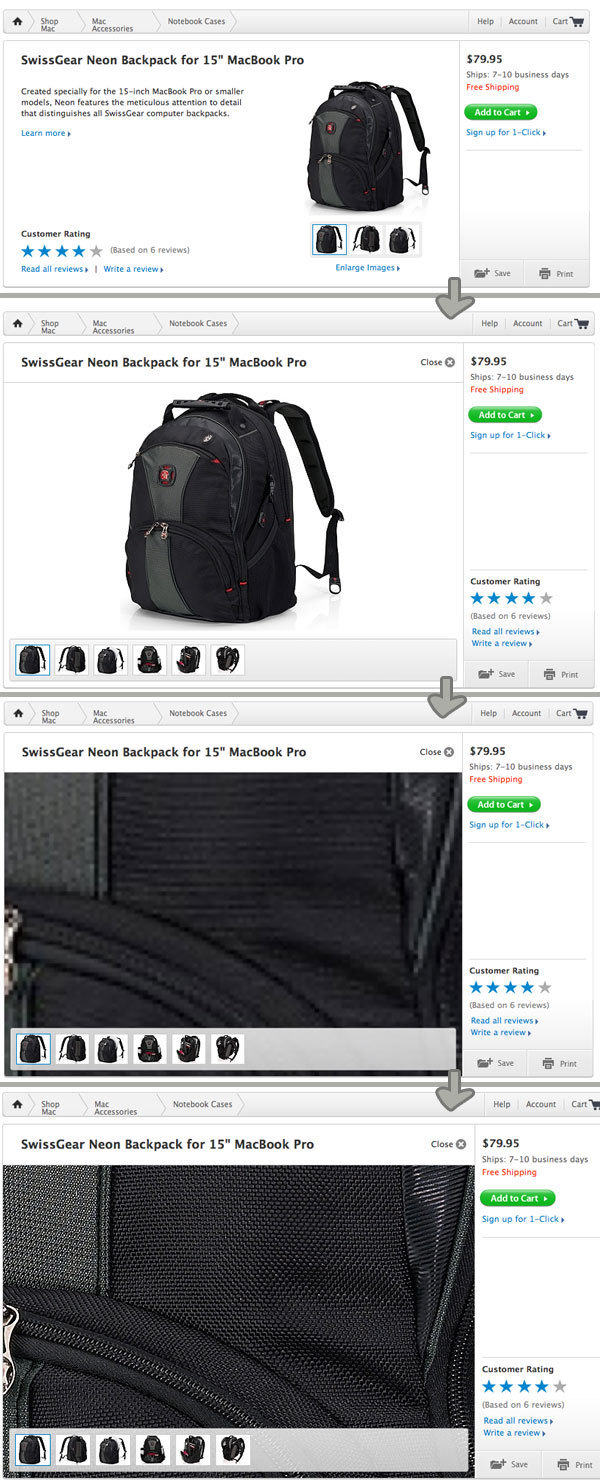
▲ In the apple.com online shop, selected products are shown with a zoom feature, that allows you to zoom in on the product image to view its details in greater resolution.
Usage
- Use when the normal image size displayed is not in high enough resolution to for the user to grasp the details in the image.
- Use when downloading full-sized and detailed versions of a all images takes up more bandwidth than you’re interested in sharing.
- Use when showing a full-sized and detailed version of an image does not fit into the website’s design.
- Use when showing a full-sized and detailed version of an image will prevent the user from getting an overview of the picture.
- Use when downloading a full-sized and detailed version of every image will take a disproportionate amount of download time for the user compared to the provided value. Only show images in high resolution when they are requested as all images might not be of equal interested to the user.
More examples
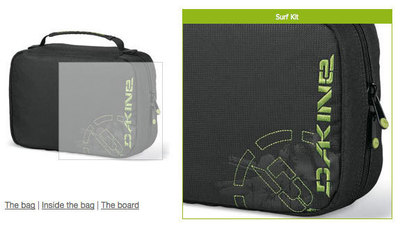
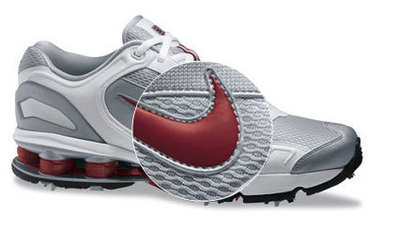
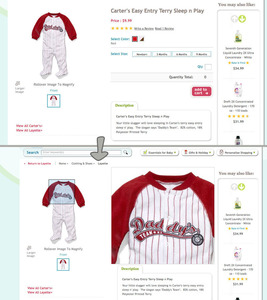

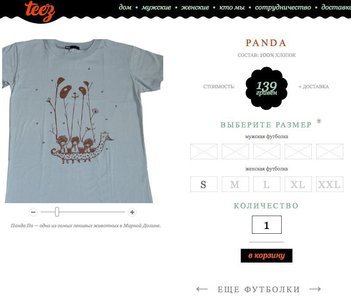
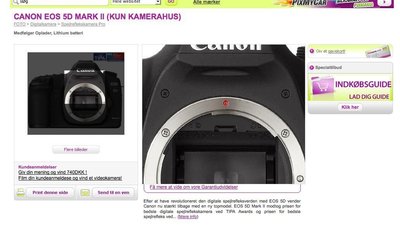
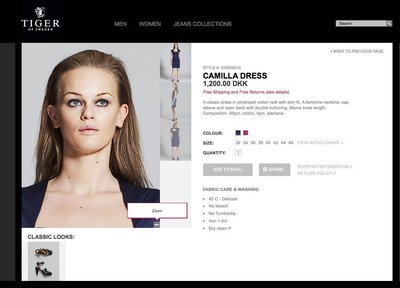
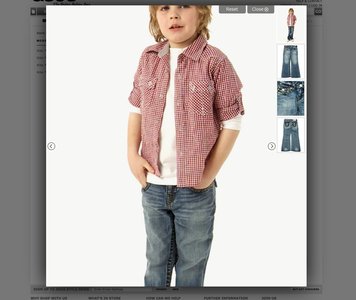
Solution
Provide a mechanism that allows the user to zoom an image to view its details.
From a server point of of view, an important goal is not to pre-load high resolution images before they are requested. This will help save bandwidth.
An intuitive way of doing this is to allow the user to click a spot on a given image. As the user clicks the image to zoom, a higher resolution image is preloaded.
Provide graphics or text about zooming in on the image; a bare image will not suggest zoom functionality to the user in itself.
Rationale
Allowing the user to zoom in on an image permits exploration of the image’s details. Depending on the zoom factor, showing the entire high resolution image from the beginning will not provide the user with an overview of the entire image thus removing the context of the details viewed.
By providing a zoom functionality, a user can zoom into just one area of the image that he or she is interested in. In this way, the user is not bothered by the other details.
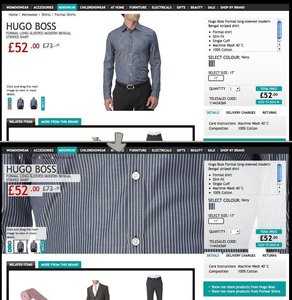
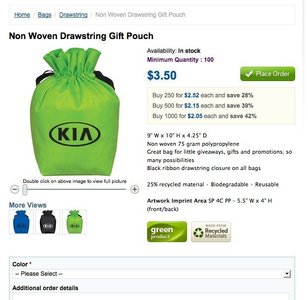
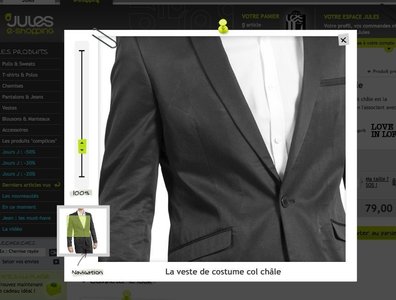
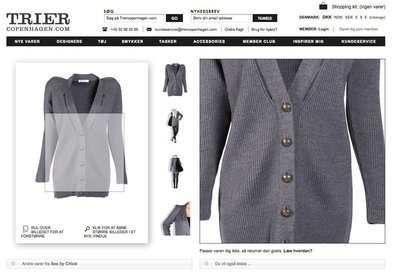
More examples of the Image Zoom pattern See all 15 example screenshots
User Interface Design Patterns
- Forms
- Explaining the process
- Community driven
- Tabs
- Jumping in hierarchy
- Menus
- Content
- Gestures
- Tables
- Formatting data
- Images
- Search
- Reputation
- Social interactions
- Shopping
- Increasing frequency
- Guidance
- Registration
Persuasive Design Patterns
- Loss Aversion
- Other cognitive biases
- Scarcity
- Gameplay design
- Fundamentals of rewards
- Gameplay rewards
1 comment
rapid4me on Jan 27, 2010
I am really glad to have come across your site. Yous posts give food for though and make us think about really important things.
Comments have been closed